
指定された幅のTextView内に文字を中央配置する方法と、TextViewそのものを中央に配置する2つの方法について説明します。あわせて、gravityとlayout_gravityの違いについても説明します。
INDEX
LinearLayoutにおけるTextView内での中央配置
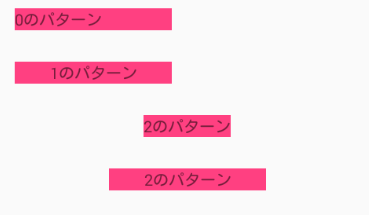
0が何もしない状態
<TextView
    android:layout_width="200dp"
    android:layout_height="wrap_content"
    android:layout_margin="20dp"
    android:background="@color/colorAccent"
    android:text="0のパターン"
    android:textSize="20sp"/>
1がTextViewの中央に配置する状態
<TextView
    android:layout_width="200dp"
    android:layout_height="wrap_content"
    android:layout_margin="20dp"
    android:background="@color/colorAccent"
    android:text="1のパターン"
    android:textSize="20sp"
    android:gravity="center_horizontal"/>
gravityによってtext属性の位置を指定します。これはRelativeレイアウトでも同じです。
2がTextViewを中央に配置する状態
<TextView
    android:layout_width="wrap_content"
    android:layout_height="wrap_content"
    android:layout_margin="20dp"
    android:background="@color/colorAccent"
    android:text="2のパターン"
    android:textSize="20sp"
    android:layout_gravity="center_horizontal"/>
親に対してこのTextViewがどの位置にあるかを指定します。RelativeLayoutでは別の属性で指定することになりますからこちらの方法では指定しません。
3がどちらも適用した状態
(画像が誤って2となっています。一番下のパターンです)
<TextView
    android:layout_width="200dp"
    android:layout_height="wrap_content"
    android:layout_margin="20dp"
    android:background="@color/colorAccent"
    android:text="2のパターン"
    android:textSize="20sp"
    android:layout_gravity="center_horizontal"
    android:gravity="center_horizontal"/>
RelativeLayoutにおけるTextView内での中央配置
同じように見ていきます。
0パターン 何もしない状態
<TextView
    android:layout_width="200dp"
    android:layout_height="wrap_content"
    android:layout_margin="20dp"
    android:background="@color/colorAccent"
    android:text="0のパターン"
    android:textSize="20sp"
    android:id="@+id/text0"/>
1パターン TextViewの中央に配置する状態
<TextView
    android:layout_width="200dp"
    android:layout_height="wrap_content"
    android:layout_margin="20dp"
    android:background="@color/colorAccent"
    android:text="1のパターン"
    android:textSize="20sp"
    android:gravity="center_horizontal"
    android:layout_below="@id/text0"
    android:id="@+id/text1"/>
こちらはTextViewの中身についての指定ですからLinearLayoutと同じです。
2パターン TextViewを中央に配置する状態
<TextView
    android:layout_width="wrap_content"
    android:layout_height="wrap_content"
    android:layout_margin="20dp"
    android:background="@color/colorAccent"
    android:text="2のパターン"
    android:textSize="20sp"
    android:layout_centerHorizontal="true"
    android:id="@+id/text2"
    android:layout_below="@+id/text1"/>
こちらはLinearLayoutとは違う方法です。ご注意を。
縦方向での中央配置については、layout_centerVertical=”true”です。
3パターン どちらも適用した状態
(画像が誤って2となっています。一番下のパターンです)
<TextView
    android:layout_width="200dp"
    android:layout_height="wrap_content"
    android:layout_margin="20dp"
    android:background="@color/colorAccent"
    android:text="2のパターン"
    android:textSize="20sp"
    android:id="@+id/text3"
    android:gravity="center_horizontal"
    android:layout_centerHorizontal="true"
    android:layout_below="@id/text2"/>
gravityとlayout_gravityの違いとまとめ
TextView内の文字を中央配置するには
LinearLayout、RelativeLayout共通で、gravity=”center”とする
TextViewを中央配置するには
LinearLayoutでは、layout_gravity=”center_horizontal”
RelativeLayoutでは、layout_centerHorizontal=”true”
中身についてはglavity、親との関係については使い分けることとなります。
複数のTextViewを均等配置する方法

LinearLayoutで均等配置 | Equal placement with LinearLayout | Android
まずはTextViewを配置<LinearLayout android:layout_width="match_parent" android:layout_height="match_parent" android:orientation="horizontal"> <TextView android:layout_...
programming-cafe.com
XMLコード
<?xml version="1.0" encoding="utf-8"?>
<LinearLayout
    xmlns:android="http://schemas.android.com/apk/res/android"
    xmlns:app="http://schemas.android.com/apk/res-auto"
    xmlns:tools="http://schemas.android.com/tools"
    android:layout_width="match_parent"
    android:layout_height="match_parent"
    tools:context="net.honeybread.test01.MainActivity"
    android:orientation="vertical">
    <LinearLayout
        android:layout_width="match_parent"
        android:layout_height="wrap_content"
        android:orientation="vertical">
        <TextView
            android:layout_width="200dp"
            android:layout_height="wrap_content"
            android:layout_margin="20dp"
            android:background="@color/colorAccent"
            android:text="0のパターン"
            android:textSize="20sp"/>
        <TextView
            android:layout_width="200dp"
            android:layout_height="wrap_content"
            android:layout_margin="20dp"
            android:background="@color/colorAccent"
            android:text="1のパターン"
            android:textSize="20sp"
            android:gravity="center_horizontal"/>
        <TextView
            android:layout_width="wrap_content"
            android:layout_height="wrap_content"
            android:layout_margin="20dp"
            android:background="@color/colorAccent"
            android:text="2のパターン"
            android:textSize="20sp"
            android:layout_gravity="center_horizontal"/>
        <TextView
            android:layout_width="200dp"
            android:layout_height="wrap_content"
            android:layout_margin="20dp"
            android:background="@color/colorAccent"
            android:text="3のパターン"
            android:textSize="20sp"
            android:layout_gravity="center_horizontal"
            android:gravity="center_horizontal"/>
    </LinearLayout>
    <RelativeLayout
        android:layout_width="match_parent"
        android:layout_height="wrap_content">
        <TextView
            android:layout_width="200dp"
            android:layout_height="wrap_content"
            android:layout_margin="20dp"
            android:background="@color/colorAccent"
            android:text="0のパターン"
            android:textSize="20sp"
            android:id="@+id/text0"/>
        <TextView
            android:layout_width="200dp"
            android:layout_height="wrap_content"
            android:layout_margin="20dp"
            android:background="@color/colorAccent"
            android:text="1のパターン"
            android:textSize="20sp"
            android:gravity="center_horizontal"
            android:layout_below="@id/text0"
            android:id="@+id/text1"/>
        <TextView
            android:layout_width="wrap_content"
            android:layout_height="wrap_content"
            android:layout_margin="20dp"
            android:background="@color/colorAccent"
            android:text="2のパターン"
            android:textSize="20sp"
            android:layout_centerHorizontal="true"
            android:id="@+id/text2"
            android:layout_below="@+id/text1"/>
        <TextView
            android:layout_width="200dp"
            android:layout_height="wrap_content"
            android:layout_margin="20dp"
            android:background="@color/colorAccent"
            android:text="3のパターン"
            android:textSize="20sp"
            android:id="@+id/text3"
            android:gravity="center_horizontal"
            android:layout_centerHorizontal="true"
            android:layout_below="@id/text2"/>
    </RelativeLayout>
</LinearLayout>