

まずはTextViewを配置
<LinearLayout
    android:layout_width="match_parent"
    android:layout_height="match_parent"
    android:orientation="horizontal">
    <TextView
        android:layout_width="wrap_content"
        android:layout_height="wrap_content"
        android:layout_margin="10dp"
        android:background="@color/red"
        android:textColor="@color/white"
        android:text="サンプル"/>
    <TextView
        android:layout_width="wrap_content"
        android:layout_height="wrap_content"
        android:layout_margin="10dp"
        android:background="@color/red"
        android:textColor="@color/white"
        android:text="サンプル"/>
    <TextView
        android:layout_width="wrap_content"
        android:layout_height="wrap_content"
        android:background="@color/red"
        android:textColor="@color/white"
        android:layout_margin="10dp"
        android:text="サンプル"/>
    <TextView
        android:layout_width="wrap_content"
        android:layout_height="wrap_content"
        android:background="@color/red"
        android:textColor="@color/white"
        android:layout_margin="10dp"
        android:text="サンプル"/>
</LinearLayout>
としますと、

となります。思ったようなものとは違います。
これを端末の幅ぴったりに均等に配置します。
layout_weightを使う
displaysizeを取得して・・・ということではありません。
LinearLayoutで使うことのできる layout_weight を用います。
android:layout_weight="1"
という感じで。
ではこれをすべてのTextViewに追加してみましょう。
すると

となります。 これで良ければ完成です。
しかし、TextViewの幅を固定したい場合はどうでしょう。
こんな具合で、、

いくつか方法はありますが、一番わかりやすいやり方は<Space>を使った方法です。
こんな感じのレイアウトXMLとなります。
<LinearLayout
    android:layout_width="match_parent"
    android:layout_height="match_parent"
    android:layout_margin="10dp"
    android:orientation="horizontal">
    <Space
        android:layout_width="wrap_content"
        android:layout_height="wrap_content"
        android:layout_weight="1"/>
    <TextView
        android:layout_width="60dp"
        android:layout_height="wrap_content"
        android:background="@color/red"
        android:textColor="@color/white"
        android:text="サンプル"/>
    <Space
        android:layout_width="wrap_content"
        android:layout_height="wrap_content"
        android:layout_weight="1"/>
    <TextView
        android:layout_width="60dp"
        android:layout_height="wrap_content"
        android:background="@color/red"
        android:textColor="@color/white"
        android:text="サンプル"/>
    <Space
        android:layout_width="wrap_content"
        android:layout_height="wrap_content"
        android:layout_weight="1"/>
    <TextView
        android:layout_width="60dp"
        android:layout_height="wrap_content"
        android:background="@color/red"
        android:textColor="@color/white"
        android:text="サンプル"/>
    <Space
        android:layout_width="wrap_content"
        android:layout_height="wrap_content"
        android:layout_weight="1"/>
    <TextView
        android:layout_width="60dp"
        android:layout_height="wrap_content"
        android:background="@color/red"
        android:textColor="@color/white"
        android:text="サンプル"/>
    <Space
        android:layout_width="wrap_content"
        android:layout_height="wrap_content"
        android:layout_weight="1"/>
</LinearLayout>
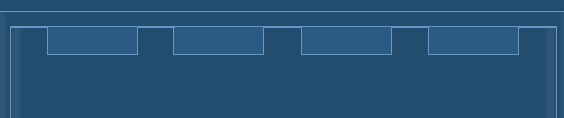
Android Studio上では次のように描かれます。
TextViewの文字を中央表示
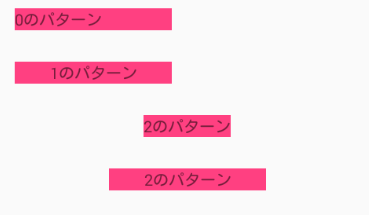
TextViewの幅を固定して文字を表示する場合、何もしない場合は
となり、左寄せになります。
この文字を中央に揃えます。そのためにはTextViewに以下を追加します。
android:gravity="center_horizontal"
こうなります。

これで中央揃えできました。
TextViewの中央配置は
TextViewで文字を中央寄せする方法 | to center characters in TextView | Android
指定された幅のTextView内に文字を中央配置する方法と、TextViewそのものを中央に配置する2つの方法について説明します。あわせて、gravityとlayout_gravityの違いについても説明します。
programming-cafe.com